SiLabs (FreeRTOS) Integration Guide
This guide walks through integrating the Hubble Network dual-stack Satellite and BLE application with the Silicon Labs Simplicity SDK on FreeRTOS.
By the end of this guide you will know how to:
Integrate the Hubble Satellite and Terrestrial (BLE) network stacks into a Simplicity SDK application.
Obtain ephemeris data and use pass prediction to schedule satellite transmissions.
Transmit data to the Hubble satellite network from a Silicon Labs device.
Supported Devices and SDK Version
The Hubble Device SDK currently supports Simplicity SDK 2026.6.1, with Simplicity Studio 6 or the command line (SLC CLI). If you require support for a different version, contact us.
The following Silicon Labs device families are supported:
Family |
Notes |
|---|---|
EFR32xG24 |
Choose a part with the +20 dBm integrated PA (e.g. EFR32MG24B220, used on BRD4187C); otherwise an external amplifier is required to reach 20 dBm |
EFR32xG26 |
Choose a part with the +20 dBm integrated PA (e.g. EFR32MG26B420, used on BRD4121A); otherwise an external amplifier is required to reach 20 dBm |
Prerequisites
Before starting, ensure you have the following:
A supported development kit or custom board with a power amplifier (PA) or front-end module (FEM) capable of at least +20 dBm transmit output power. The Hubble satellite link budget requires this minimum output to reach the network reliably.
An antenna tuned to the Hubble satellite frequency band, connected to the RF output of the PA or FEM.
A Hubble account and API key to fetch ephemeris data for pass prediction.
ADALM-PLUTO SDR (optional, recommended for custom board bring-up): used to verify RF output at the physical layer. Available from common distributors such as DigiKey and Mouser. See the ADALM-PLUTO product page for details.
Create your Hubble Account
A Hubble account is required to access the Hubble Dashboard and generate an API key for fetching ephemeris data used in pass prediction.
Create an account at the Hubble Dashboard.
Once logged in, follow the Hubble Platform API documentation to authenticate and generate your API key.
Keep your API key accessible. It is used later in this guide when fetching orbital parameters for pass prediction.
SDK Setup
Clone the Hubble Device SDK:
git clone https://github.com/HubbleNetwork/hubble-device-sdk.git
Installing the Tools and the Extension
The Hubble Device SDK ships as a Simplicity SDK extension.
Install Simplicity Studio 6 with the Simplicity SDK.
Go to Settings → SDKs and select the Simplicity SDK version you want to use.
Click Add Extension, then Browse to the directory where you cloned the Hubble Device SDK, and click Finish.
In the Verify SDK Extensions dialog, click Trust.
Install the Simplicity SDK and the tools with the Silicon Labs Tool (SLT):
export SLT=/path/to/slt
$SLT install simplicity-sdk slc-cli gcc-arm-none-eabi commander
SLC discovers extensions under the Simplicity SDK’s extension
directory. Set the paths, then link the Hubble Device SDK there and
register it as trusted:
export HUBBLE_SDK=/path/to/hubble-device-sdk
export SISDK=/path/to/simplicity_sdk
export SLC=/path/to/slc_cli/slc
export COMMANDER=/path/to/commander

mkdir -p $SISDK/extension
ln -s $HUBBLE_SDK $SISDK/extension/hubble-device-sdk
$SLC signature trust -extpath $SISDK/extension/hubble-device-sdk
Tip
$SLT where <package> prints where a package was installed. See
Useful paths for the default install locations of Simplicity Studio
and SLT.
Project Configuration
Enable the Hubble dual-stack functionality by adding the Hubble components to
your project’s .slcp file and configuring them.
Open your project’s
.slcpfile to launch the Project Configurator.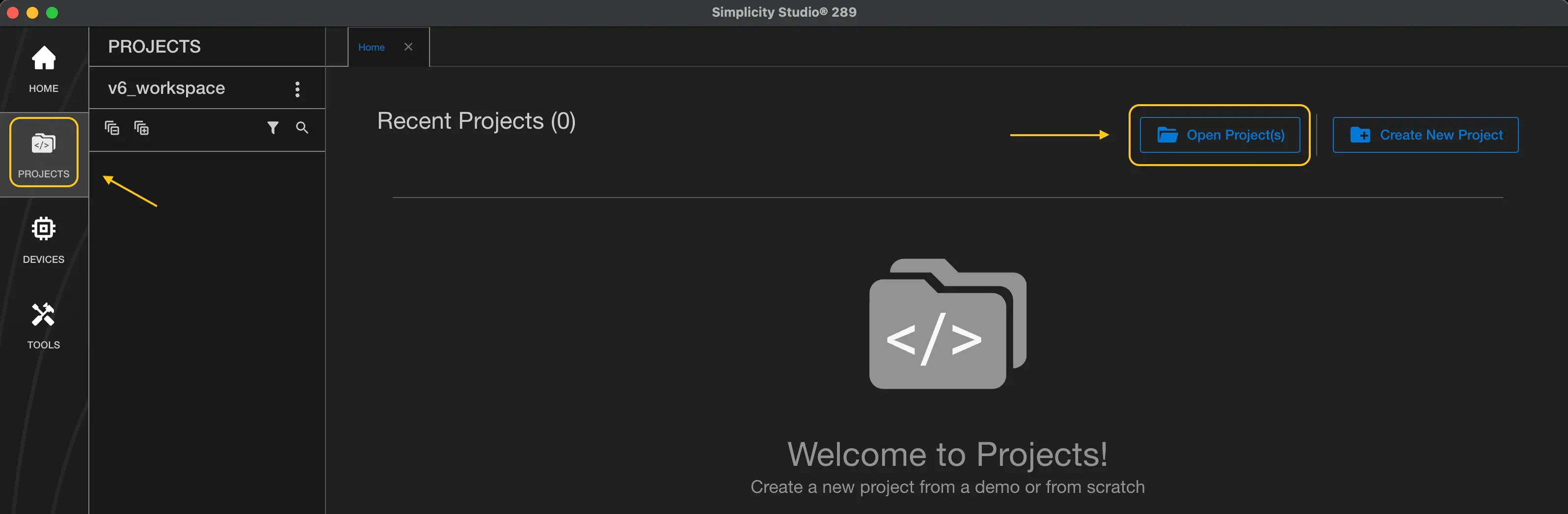
Go to Software Components and search for Hubble.
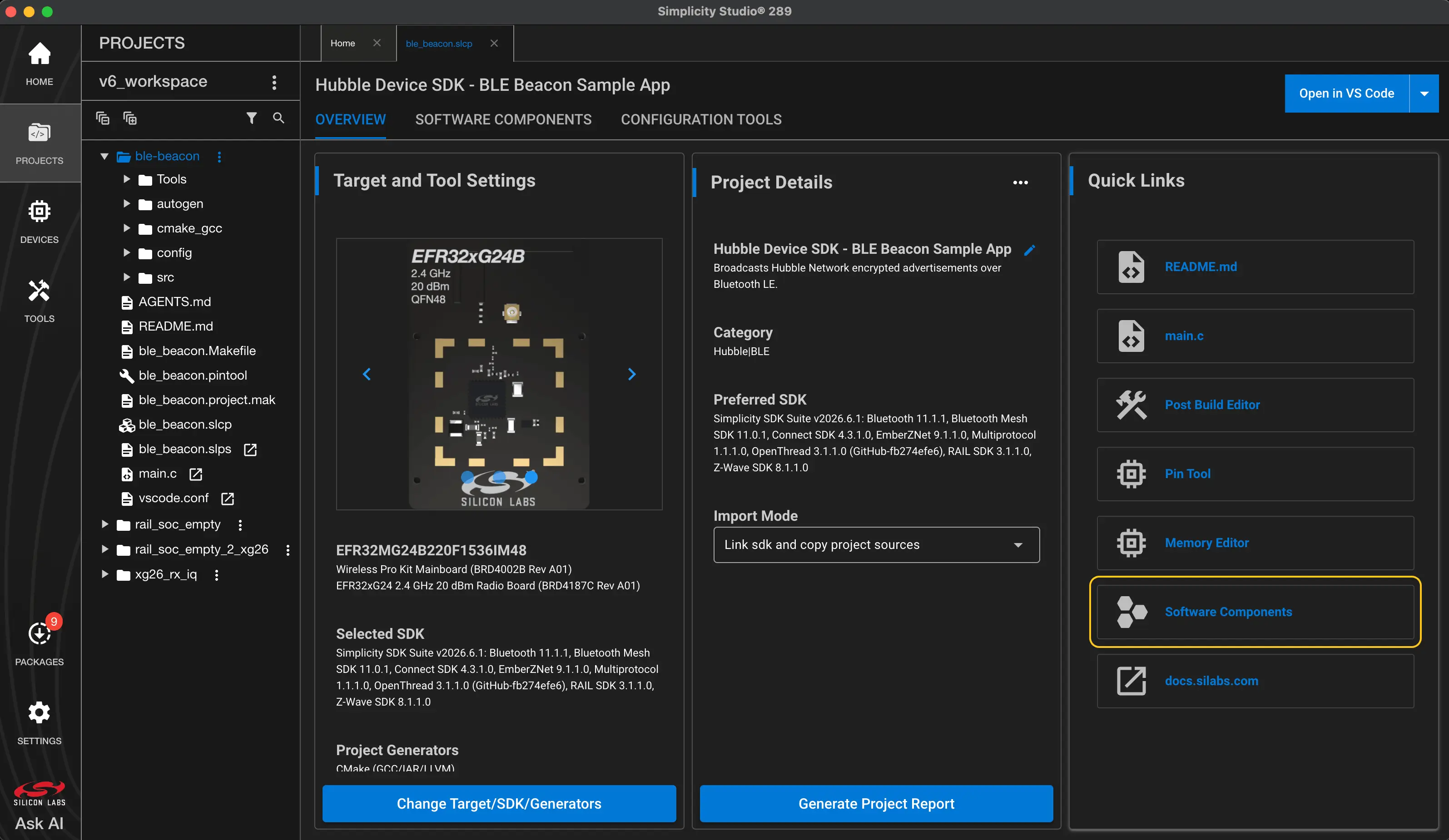
Install Hubble Device SDK Terrestrial (BLE) (under Hubble → BLE) and Hubble Device SDK Satellite (under Hubble → Satellite).
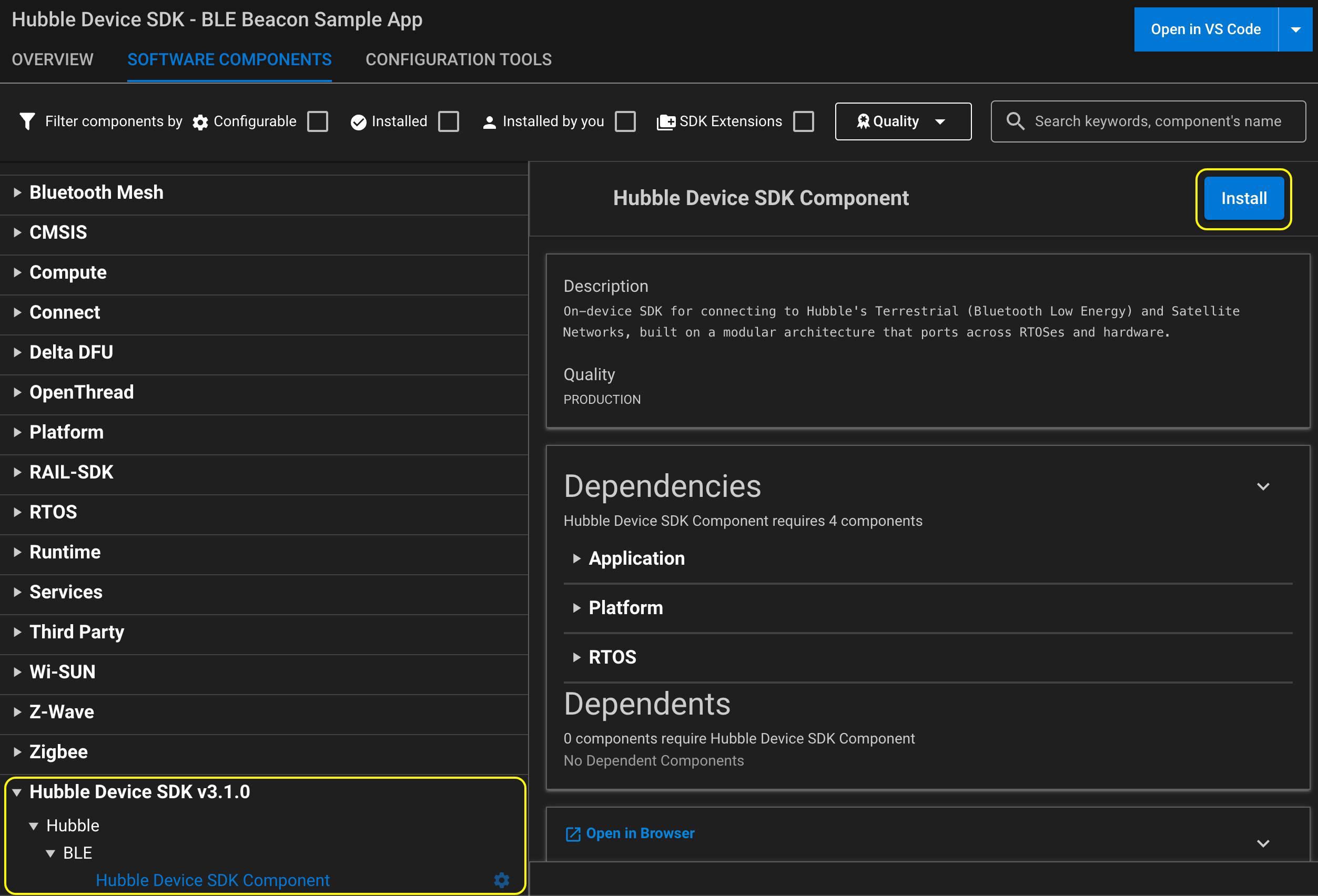
Select Hubble Device SDK Common (under Hubble), click Configure, and set:
Hubble Network key size to match your device key.
Counter source to Unix time.
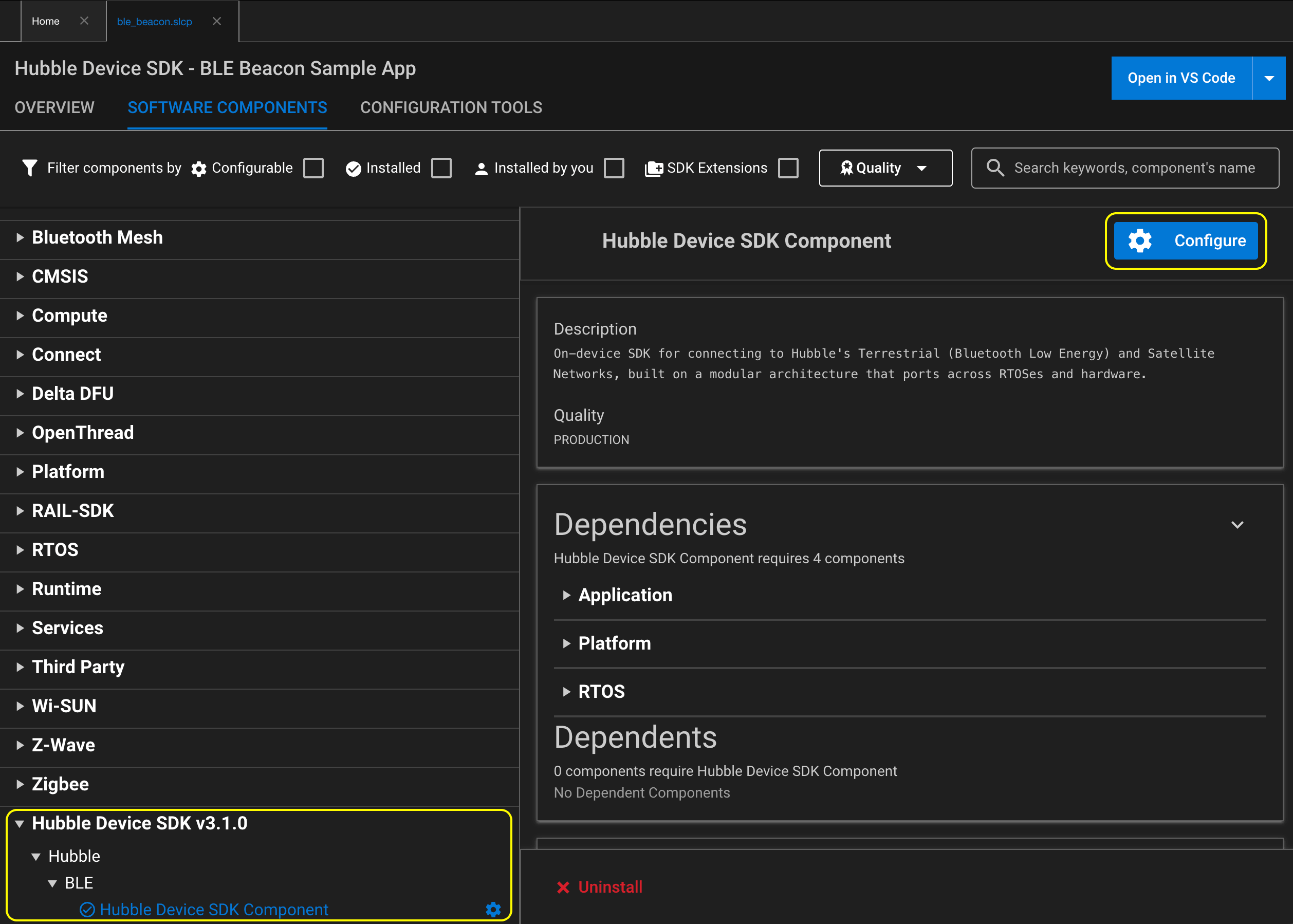
Select Hubble Device SDK Satellite, click Configure, and set Device time drift retry rate in PPM to your oscillator’s PPM rating (check your crystal datasheet). See Clock Drift Compensation for details.
Hover over each option to learn more, or refer to Configuration Options for the complete options reference.
Declare the extension, add the Hubble components, and set the options
in your project’s .slcp file:
sdk_extension:
  # change '3.1.0' to the version of the Hubble Device SDK you installed
  - id: hubble-device-sdk
    vendor: hubble-network
    version: 3.1.0

component:
  - id: hubble-device-sdk-ble
    from: hubble-device-sdk
  - id: hubble-device-sdk-sat
    from: hubble-device-sdk

configuration:
  # 32 for AES-256, 16 for AES-128
  - name: SISDK_HUBBLE_KEY_SIZE
    value: "32"
  # 0 = Unix time, 1 = device uptime
  - name: SISDK_HUBBLE_COUNTER_SOURCE
    value: "0"
  # Check your oscillator's PPM rating
  - name: SISDK_HUBBLE_SAT_NETWORK_DEVICE_TDR
    value: "10"
See Clock Drift Compensation for details on TDR and how it affects retransmissions.
Note
On Simplicity SDK, the options are named SISDK_HUBBLE_* and map to the
CONFIG_HUBBLE_* options in Configuration Options, e.g.
SISDK_HUBBLE_KEY_SIZE sets CONFIG_HUBBLE_KEY_SIZE.
Caution
The Bluetooth stack reserves only 1 advertising set by default
(SL_BT_CONFIG_USER_ADVERTISERS, Max number of advertising sets
reserved for user in the Advertising Base Feature component). If
your application advertises more than one set at a time, for example a
connectable set for BLE provisioning alongside the Hubble beacon, raise it
accordingly. Otherwise creating the extra set fails.
Application Components
Besides the Hubble components, a dual-stack application needs the following
components in its .slcp:
component:
  - id: freertos
  - id: bluetooth_stack
  - id: gatt_configuration
  - id: bluetooth_feature_gatt_server
  - id: bluetooth_feature_connection
  - id: bluetooth_feature_connection_role_peripheral
  - id: bluetooth_feature_legacy_advertiser
  - id: bluetooth_feature_system
  - id: mbedtls_base64
bluetooth_stack and the bluetooth_feature_* components provide BLE
advertising and the GATT server used for provisioning; Hubble uses legacy
advertising. gatt_configuration adds the .btconf GATT database.
mbedtls_base64 is only required if your application decodes a
base64-encoded key at runtime, as described in
Handling the Hubble Device Key.
Note
See samples/freertos/silabs/sat-dual-stack for a complete reference
.slcp, including the GATT provisioning service in
config/btconf/gatt_configuration.btconf.
Preparing for Satellite Transmission
The satellite stack requires three inputs before it can schedule and transmit:
Unix time: used for pass prediction and key derivation
Device location: latitude and longitude, used to compute satellite passes
Orbital parameters: satellite ephemeris data describing each satellite’s orbit
How these are provisioned is up to the application.
Time
Many approaches work: BLE provisioning from a phone, NTP over Wi-Fi, GPS, an RTC, or reading from persistent storage across reboots. See Time Management for best practices and trade-offs.
Location
If the device is deployed at a fixed location, latitude and longitude can be hard-coded directly in firmware:
struct hubble_sat_device_pos device_pos = {
    .lat = 47.6,
    .lon = -122.3,
};
For mobile devices, location can be obtained from an onboard GPS module if present, or provisioned at runtime from a companion app. For example, delivered over BLE from a phone/gateway that has GPS access. The Dual-Stack Companion Tool is a host-side reference for this flow: it provisions time, location and orbital parameters over BLE in one step.
Orbital Parameters
Orbital parameters describe each satellite’s orbit and are used by
hubble_sat_next_pass_get() to predict when a satellite will be
visible from the device location.
Since Hubble satellites are station-keeping, orbital parameters are stable
enough to be baked into firmware at build time. Use the
tools/orbital_params_fetch.py helper to fetch current parameters from the
Hubble API and generate a sat_params.c file ready to compile into your
application:
export HUBBLE_API_TOKEN=<your-api-token>
python tools/orbital_params_fetch.py path/to/output
See Orbital Parameters (Satellites information) for details on the generated format and how to register the array with the SDK.
Handling the Hubble Device Key
Every device authenticates to the Hubble Network with a cryptographic key
issued by the Hubble Platform API. The key is either AES-128 or AES-256, and
its size must match the size the SDK was built for
(CONFIG_HUBBLE_NETWORK_KEY_128 or CONFIG_HUBBLE_NETWORK_KEY_256,
exposed in bytes as CONFIG_HUBBLE_KEY_SIZE). Requesting a key of one size
and building for the other fails at initialization.
The key reaches the SDK through hubble_init():
int hubble_init(uint64_t initial_time, const void *key);
Important
The SDK stores the pointer you hand it and does not copy the key material. The buffer must stay valid for as long as the SDK is in use, so it cannot be a stack or otherwise temporary buffer. Give it static storage duration.
Passing NULL defers the key; supply it later with hubble_key_set()
before requesting any advertisement.
There are two common ways to get a key onto a device. Not every platform supports both, and some offer further options; see the platform-specific notes that follow.
Embedding the Key at Build Time
This is the recommended method for production applications. It is the simplest option to automate in a build, and the only one that provisions the initial time in the same step. The key material still lives in the firmware image, so treat the image as a secret.
To embed the key at build time, point embed_key_time.py at <your_src_dir>/:
python tools/embed_key_time.py -b /path/to/key -o <your_src_dir>/
This writes <your_src_dir>/key.c and <your_src_dir>/time.c, defining master_key and
unix_time. Both symbols are declared static, so the generated .c
files are meant to be included into the translation unit that uses them rather
than compiled separately. Include them into the translation unit that calls
hubble_init():
#include "key.c"
#include "time.c"

/* ... */

err = hubble_init(unix_time, master_key);
See any of the ble-beacon samples for a complete example.
Supplying the Key from Project Configuration
Use this for debugging and testing only. Production applications should embed the key at build time instead.
Rather than generating source, the application can carry the key as a
base64-encoded string in its own build configuration and decode it at runtime
before calling hubble_init(). Decode into a buffer with static storage
duration, and verify that the decoded length matches CONFIG_HUBBLE_KEY_SIZE
before using it.
This supplies only the key. The initial time passed to hubble_init() has to
be obtained separately, by whatever means suits the device: a real-time clock,
a network time source, or provisioning from a companion application.
Note
The SDK does not define a configuration option for the key. Declare one in your own application and name it to suit your project; the option names used in the platform notes that follow are illustrative.
To supply the key from configuration, declare a string option in a config
header of your project and set it in the Project Configurator, or with
--configuration when generating with slc:
// <s.44 HUBBLE_DEVICE_KEY> Base64-encoded Hubble master key
// <d> ""
#define HUBBLE_DEVICE_KEY ""
Decode it before handing it to hubble_init(). This requires the
mbedtls_base64 component in your .slcp:
#include "mbedtls/base64.h"

static uint8_t _hubble_key[CONFIG_HUBBLE_KEY_SIZE];

/* ... */

if (strlen(HUBBLE_DEVICE_KEY) != 0) {
    size_t outlen = 0;

    err = mbedtls_base64_decode(
        _hubble_key, sizeof(_hubble_key), &outlen,
        (const unsigned char *)HUBBLE_DEVICE_KEY,
        strlen(HUBBLE_DEVICE_KEY));

    app_assert(err == 0 && outlen == sizeof(_hubble_key),
               "Invalid key provided!\n");
}
See samples/freertos/silabs/sat-dual-stack for a complete example.
Initializing the Hubble Device SDK
Once time, location, and orbital parameters are available, initialize the SDK before calling any other Hubble API:
/*
 * At this point unix_time_ms, device_pos, and orb_params are assumed to be
 * valid. Either baked into firmware or received via BLE provisioning.
 */
err = hubble_init(unix_time_ms, master_key);
if (err != 0) {
    LOG_ERR("Failed to initialize Hubble Device SDK (err %d)", err);
    return err;
}

err = hubble_sat_satellites_set(orb_params, orb_params_count);
if (err != 0) {
    LOG_ERR("Failed to set orbital parameters (err %d)", err);
    return err;
}
hubble_init() takes the current Unix time in milliseconds and a
pointer to the master key. hubble_sat_satellites_set() registers the
orbital parameters array with the SDK.
Warning
The key buffer MUST remain valid for the lifetime of SDK usage. The SDK stores the pointer directly and does not copy the key. Do not use a stack or temporary buffer.
Unix time must be non-zero. Passing
0inCONFIG_HUBBLE_COUNTER_SOURCE_UNIX_TIMEmode returns an error.The orbital parameters array MUST remain valid for as long as pass prediction is used. The SDK stores a pointer and does not copy the array.
The Pass Prediction Loop
With the SDK initialized, the application enters the main dual-stack loop: compute the next satellite pass, beacon over BLE while waiting, stop BLE, transmit to the satellite, then repeat.
Compute the Next Pass
for (;;) {
    now_ms = hubble_time_get();

    err = hubble_sat_next_pass_get(now_ms, &device_pos, &pass_info);
    if (err != 0) {
        LOG_ERR("Failed to get next pass (err %d)", err);
        return err;
    }

    /* If the pass has already started, find the next one. */
    if (pass_info.start <= now_ms) {
        err = hubble_sat_next_pass_get(
            pass_info.start + pass_info.duration,
            &device_pos, &pass_info);
        if (err != 0) {
            LOG_ERR("Failed to get next pass (err %d)", err);
            return err;
        }
    }
hubble_sat_next_pass_get() returns the soonest pass visible from the
device location. If pass_info.start is already in the past, a pass is in
progress, skip it and compute the next one by searching from after its end
(pass_info.start + pass_info.duration).
Beacon over BLE While Waiting
Schedule a timer for the pass window and start BLE advertising while the
device waits. The example below uses sl_sleeptimer; any timer that can
schedule a future callback works equally well.
/*
 * Schedule a sleeptimer for the satellite pass window.
 * Verify the wait does not exceed the maximum timeout the
 * sleeptimer supports.
 */
status = sl_sleeptimer_start_timer_ms(&sat_pass_timer,
                                      pass_info.start - now_ms,
                                      sat_pass_timer_cb, NULL, 0, 0);
if (status != SL_STATUS_OK) {
    app_log_error("Failed to start pass timer (status 0x%04lx)\n",
                  status);

    /*
     * Clean up the task and free its resources
     * (BLE state, timers, semaphores).
     */
    goto cleanup;
}

/* Get the Hubble beacon payload and start advertising */
hubble_ble_advertise_get(inputBuf, inputBufLen, outBuf, &outBufLen);
ble_adv_start();

/*
 * Block until the pass timer fires. Common approaches are
 * a semaphore, task notification, or event flag.
 */
xSemaphoreTake(sat_pass_sem, portMAX_DELAY);
Transmit to the Satellite
Stop advertising, then build and send the packet:
    ble_adv_stop();

    err = hubble_sat_packet_get(&packet, NULL, 0);
    if (err != 0) {
        app_log_error("Failed to build packet (err %d)\n", err);
        goto cleanup;
    }

    /* Blocking call. Retries are handled internally by the SDK */
    err = hubble_sat_packet_send(&packet, HUBBLE_SAT_RELIABILITY_NORMAL);
    if (err != 0) {
        app_log_error("Failed to send packet (err %d)\n", err);
        goto cleanup;
    }
} /* end while loop, back to compute the next pass and restart beacon */
hubble_sat_packet_send() is blocking. It returns only after the full
transmission sequence completes, including all retries. See
Reliability and Power Consumption for guidance on reliability modes and
their effect on power consumption.
Building and Flashing
Click the Build icon to build the project.
Click the Flash icon to program the device.
Click the Debug icon to launch the debugger.
See the Silicon Labs Build, Flash, or Debug a Project guide for more details.
Generate a Makefile project, then build it:
$SLC generate --sdk $SISDK -tlcn gcc -o makefile -cp \
    -p <your-app>.slcp -d <output-dir> --with <board>

cd <output-dir>
make -f <your-app>.Makefile
Flash the built firmware with Simplicity Commander:
$COMMANDER flash build/debug/<your-app>.s37
Verifying the Application
Expected Log Output
The SDK logs through the app_log component, which the Hubble components
pull in, to the virtual COM port. The log level is set to debug by default.
After a successful hubble_init() call, the SDK logs:
Hubble Device SDK initialized (HDCV:1.0/E:256/CS:UT/RP:S86400/N:TS/TV:0/SV:0)
At debug level, once pass prediction runs and a transmission is scheduled:
Time drift since last sync: 20000 ms
Number of additional retries due TDR: 1
Number of retries: 9 - interval: 20 seconds
After hubble_sat_packet_send() completes:
Hubble Satellite packet sent
If this line appears without any preceding error, the device has successfully transmitted to the satellite network.
Verify BLE
Use the SDK’s scan script to confirm BLE advertising is working. Install the dependencies and run:
pip install -r tools/requirements-scan.txt
python tools/scan.py --key "<your-device-key>"
The script scans for Hubble BLE beacons (UUID 0xFCA6) and prints decoded
packets in real time. Running without --key prints raw packets without
decryption.
Alternatively, use the Hubble Connect mobile app to see nearby Hubble devices:
Verify Satellite RF
To verify the satellite RF output before a live pass, use an ADALM-PLUTO SDR
and the pyhubblenetwork scan tool. See the RF Verification with an SDR
section in Next Steps below for full instructions.
Troubleshooting
hubble_init returns an error
Symptom: <wrn> hubblenetwork: Failed to set Unix Epoch time
Cause: unix_time_ms passed to hubble_init() is 0.
The SDK requires a valid non-zero Unix timestamp.
Fix: Ensure time is provisioned (over BLE, NTP, GPS, or RTC) before
calling hubble_init(). See the Preparing for Satellite
Transmission section in this guide.
—
Symptom: <wrn> hubblenetwork: Failed to set key
Cause: The key buffer is NULL, zero-length, or the wrong size for the configured key type.
Fix: Verify the key is correctly decoded and its length matches the configured key size.
Pass prediction returns an error
Symptom: <wrn> hubblenetwork: Hubble Satellite next pass get: no satellites configured
Cause: hubble_sat_satellites_set() was not called before
hubble_sat_next_pass_get().
Fix: Call hubble_sat_satellites_set() with a valid orbital
parameters array immediately after hubble_init().
—
Symptom: <wrn> hubblenetwork: Hubble Satellite next pass get: no pass found
Cause: No satellite pass is visible from the given location within the search window. Most commonly caused by incorrect device coordinates or a stale Unix timestamp.
Fix: Verify that device_pos.lat and device_pos.lon are correct
and that unix_time_ms reflects current wall-clock time.
—
Symptom: Firmware appears to hang or stall inside
hubble_sat_next_pass_get().
Cause: The pass prediction algorithm iterates forward orbit-by-orbit until
it finds a pass. If the input time is near zero (e.g. Unix time was passed in
seconds instead of milliseconds), or if device_pos.lat
and device_pos.lon are invalid, the loop can spin through thousands of
orbits before returning.
Fix: Confirm unix_time_ms is in milliseconds and that
device_pos.lat and device_pos.lon hold the actual device coordinates.
Creating an advertising set fails
Symptom: sl_bt_advertiser_create_set fails when the application
creates a second advertising set, e.g. for BLE provisioning alongside the
Hubble beacon.
Cause: The Bluetooth stack reserves only one advertising set by default.
Fix: Raise SL_BT_CONFIG_USER_ADVERTISERS (Max number of
advertising sets reserved for user in the Advertising Base Feature
component) to the number of sets your application uses.
Application stalls when no terminal is connected
Symptom: The application stops making progress, e.g. no BLE advertising or satellite transmission, while no serial terminal is reading the virtual COM port.
Cause: Hardware flow control (CTS/RTS) is enabled on the virtual COM port by default on some boards. Logging blocks while nothing reads the port.
Fix: Disable flow control by setting
SL_IOSTREAM_EUSART_VCOM_FLOW_CONTROL_TYPE to
SL_IOSTREAM_EUSART_UART_FLOW_CTRL_NONE, or disable logging
(APP_LOG_ENABLE = 0).
Next Steps
RF Verification with an SDR
Before waiting for a live satellite pass, you can verify that your device is transmitting a valid Hubble packet at the physical layer using an ADALM-PLUTO product page and the pyhubblenetwork Python library.
Install the library:
pip install pyhubblenetwork
Connect the ADALM-PLUTO near the device antenna and run the scanner with your device key to decode captured packets in real time:
hubblenetwork sat scan --key "<your-device-key>"
A successfully decoded packet confirms the RF output, packet framing, channel hopping sequence, and PA/FEM sequencing are all correct. For the full list of available commands, run:
hubblenetwork --help
See the pyhubblenetwork repository for detailed usage and setup instructions.
Viewing Upcoming Passes
Use the Hubble Pass Explorer to see when the next satellite pass is predicted for your location. This is useful to cross-check pass prediction results from the device and to plan test windows.
Dashboard Verification
Once a live satellite pass has occurred and hubble_sat_packet_send()
returned without error, after the downlink data is successful, log into the
Hubble Dashboard Devices Page to confirm the packet was received by the network. A packet
appearing on the dashboard is end-to-end proof that the device is operational
on the Hubble satellite network.
Further Reading
Satellite Network Overview: satellite protocol details, reliability modes, and power trade-offs.
Configuration Options: full configuration reference for all
CONFIG_HUBBLE_*options.Time Management: time management best practices for devices with and without a real-time clock.
Silicon Labs Simplicity SDK: Silicon Labs’ SDK documentation, examples, and release notes.